Generate a full page
Starts from a blueprint rather than a blank prompt, because a page is a sequence with structure, not one big paragraph of instructions — see AI → Blueprints for what a blueprint actually is.
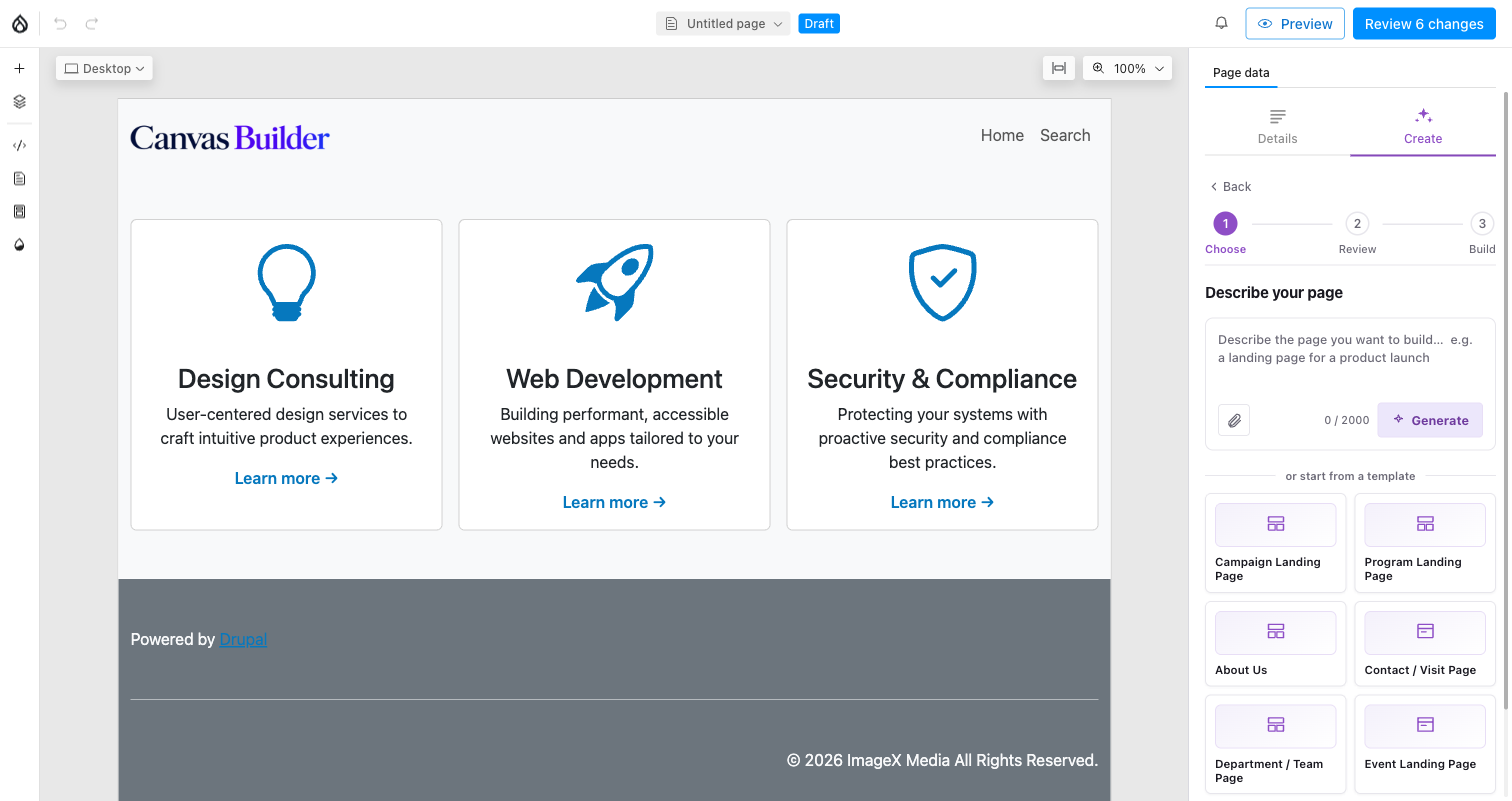
1. Templates. Pick one of the shipped blueprints (or switch to Describe and write the page freely). The recommended direction is picked for you — choose another under the template, or change it later from Review.
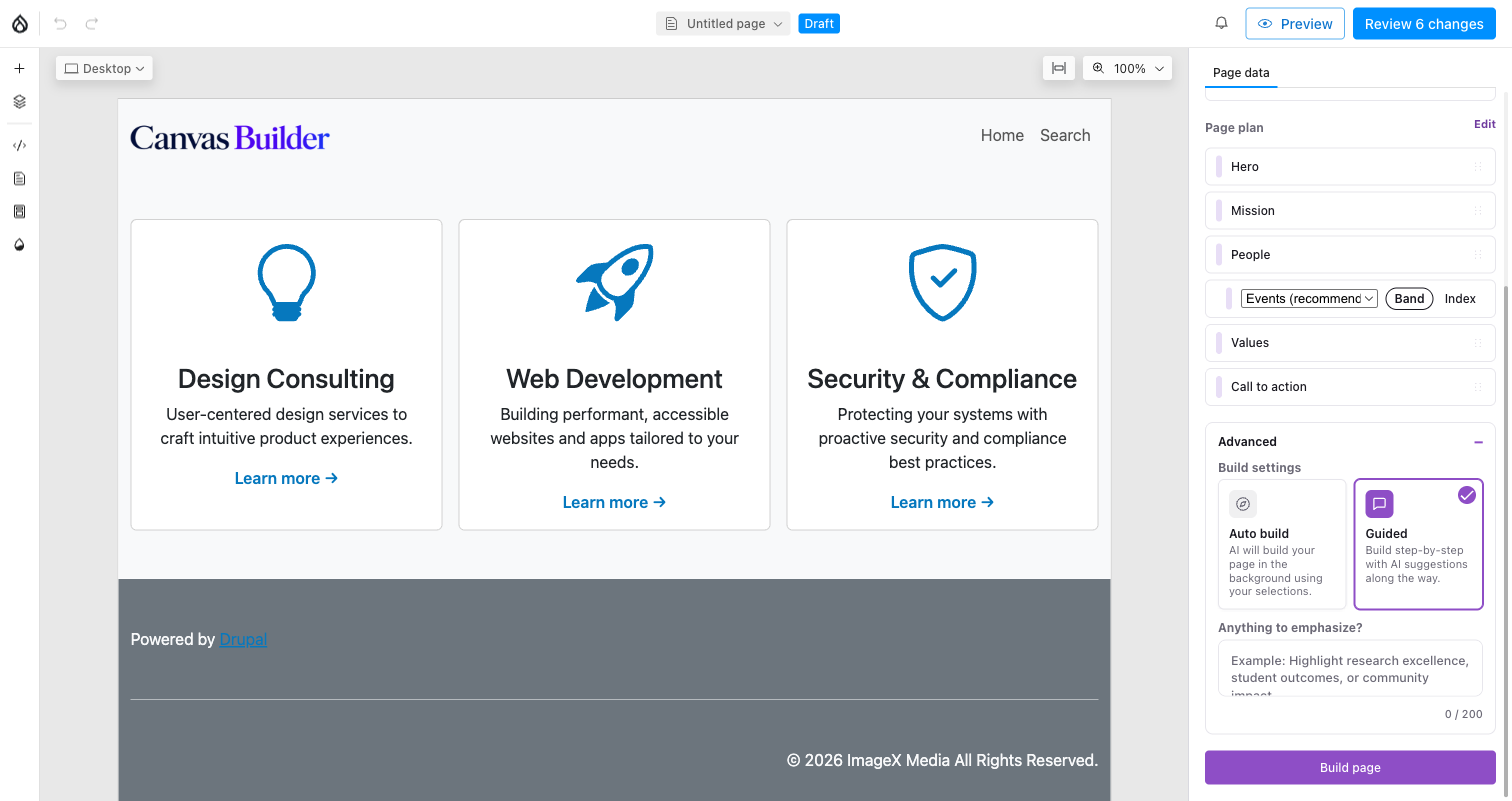
2. Review your selections. Every choice on one screen. Auto builds everything in the background; Guided stops after each section for your approval. Advanced holds an optional emphasis note.
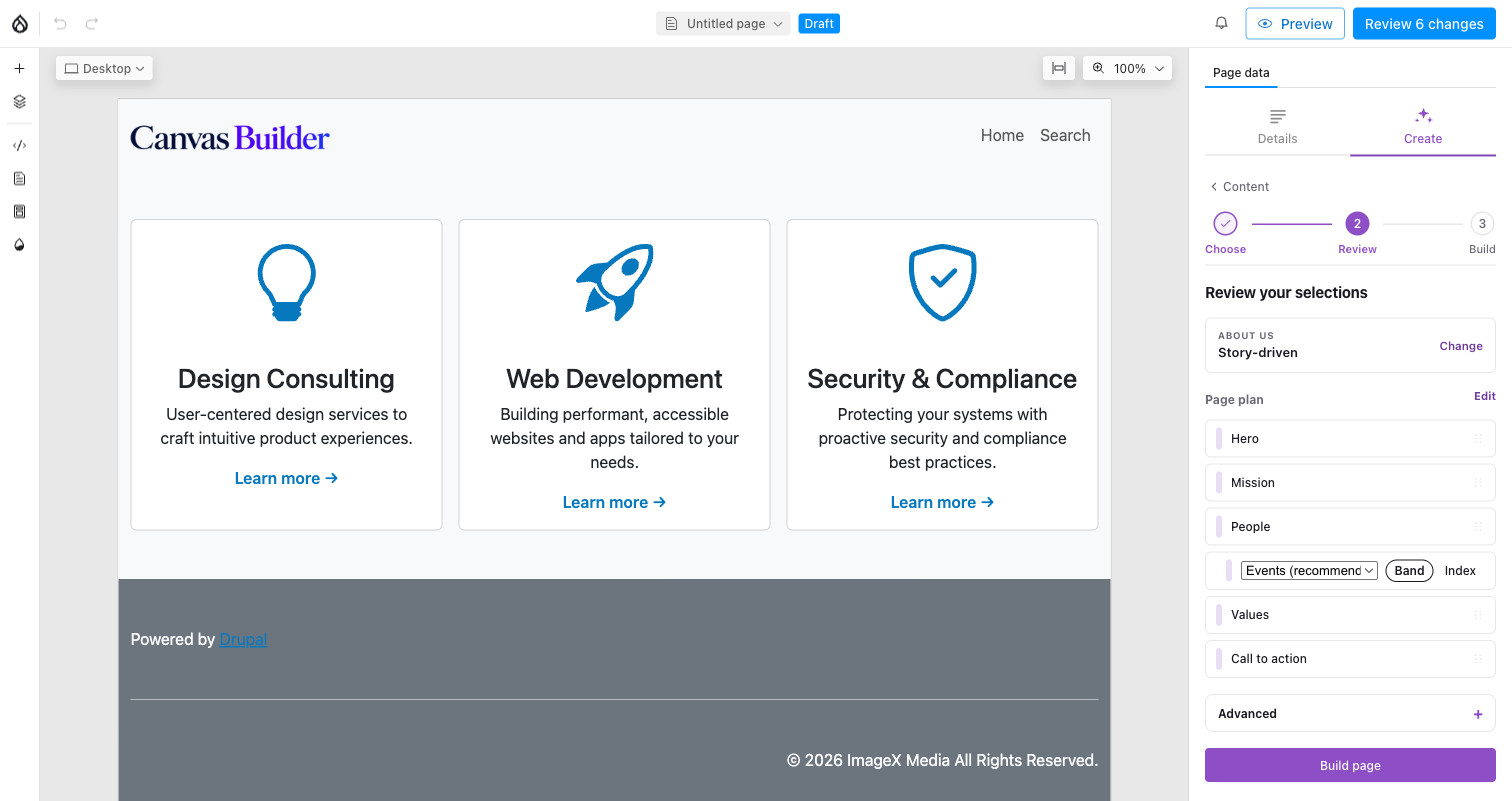
2a. Sections. The section order the blueprint produces — reorder, drop sections, or override how a data-driven section (like "People") resolves.
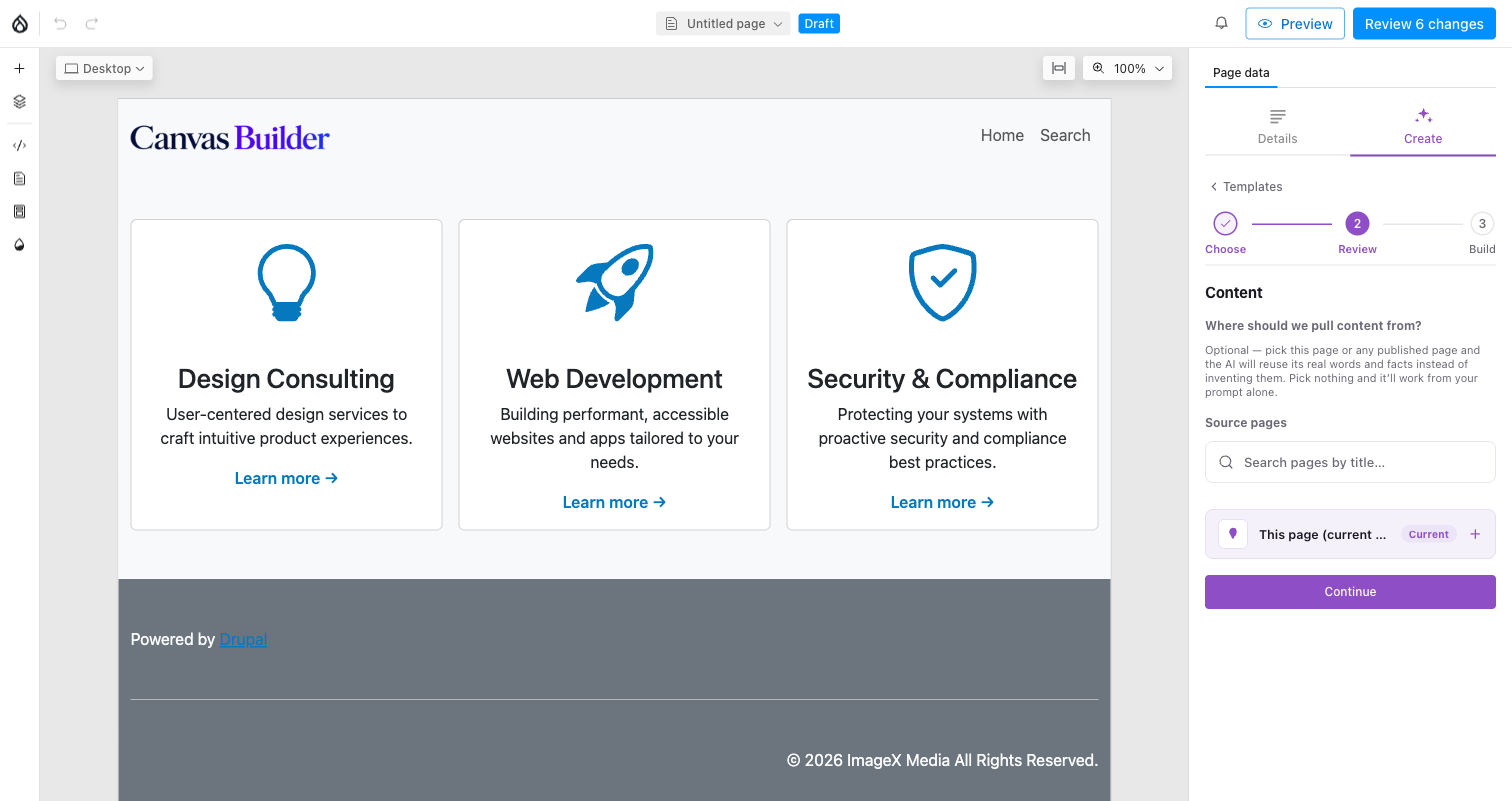
2b. Content sources. Optionally ground the build in real pages — the AI reuses their actual words and images instead of inventing them.
A full-page build always adds to whatever page you had open — there is no separate "create a new page" step. If that page already has at least one section, clicking Build page stops first with "This page already has content," naming the page and asking you to confirm before it adds more; a blank page skips straight past this. Clicking Build page may then also ask you to confirm anything that looks data-driven, before it starts building:
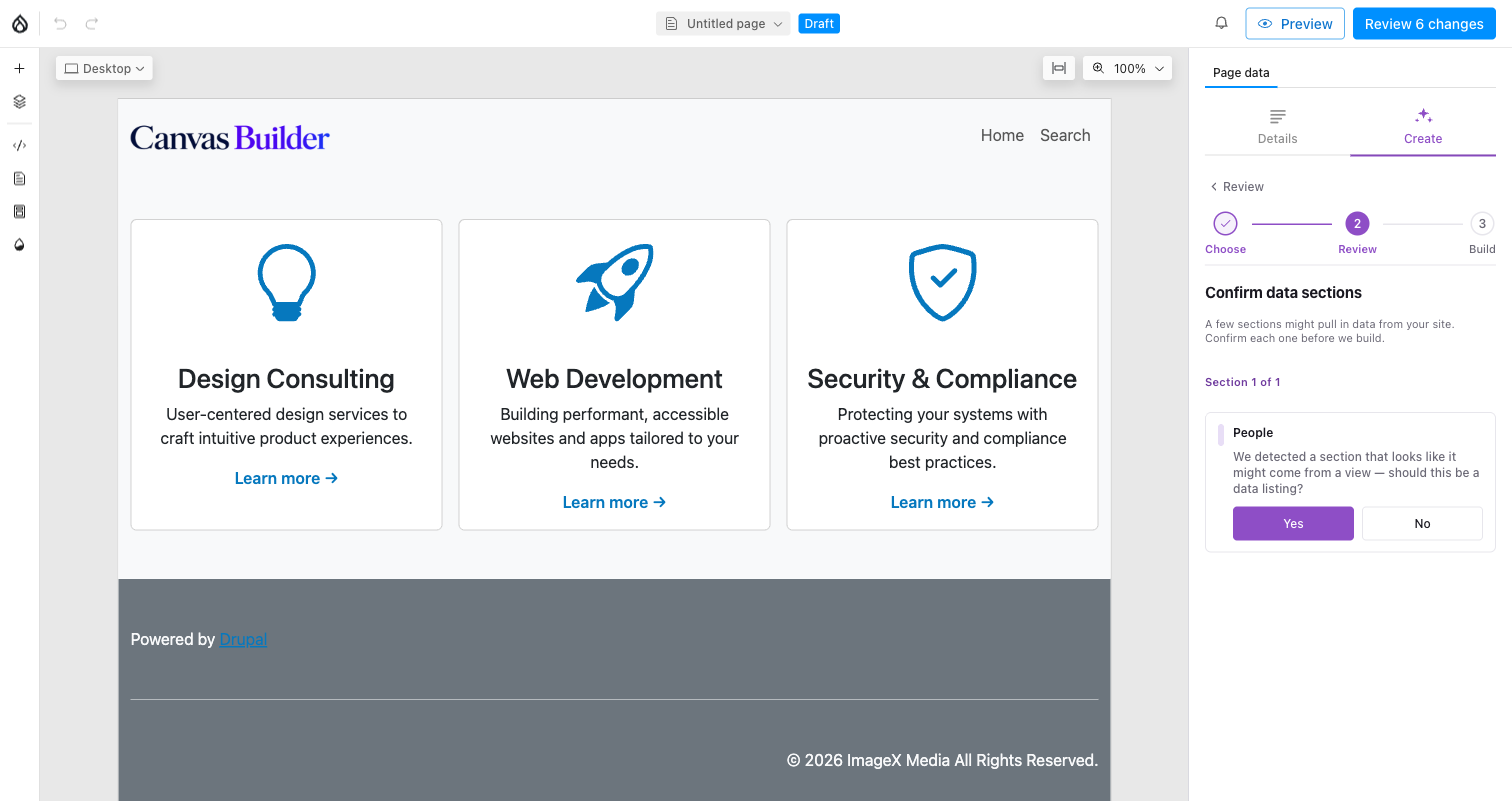
A quick sanity check for any section that looks like it should pull from a View, before the build spends a call on it.
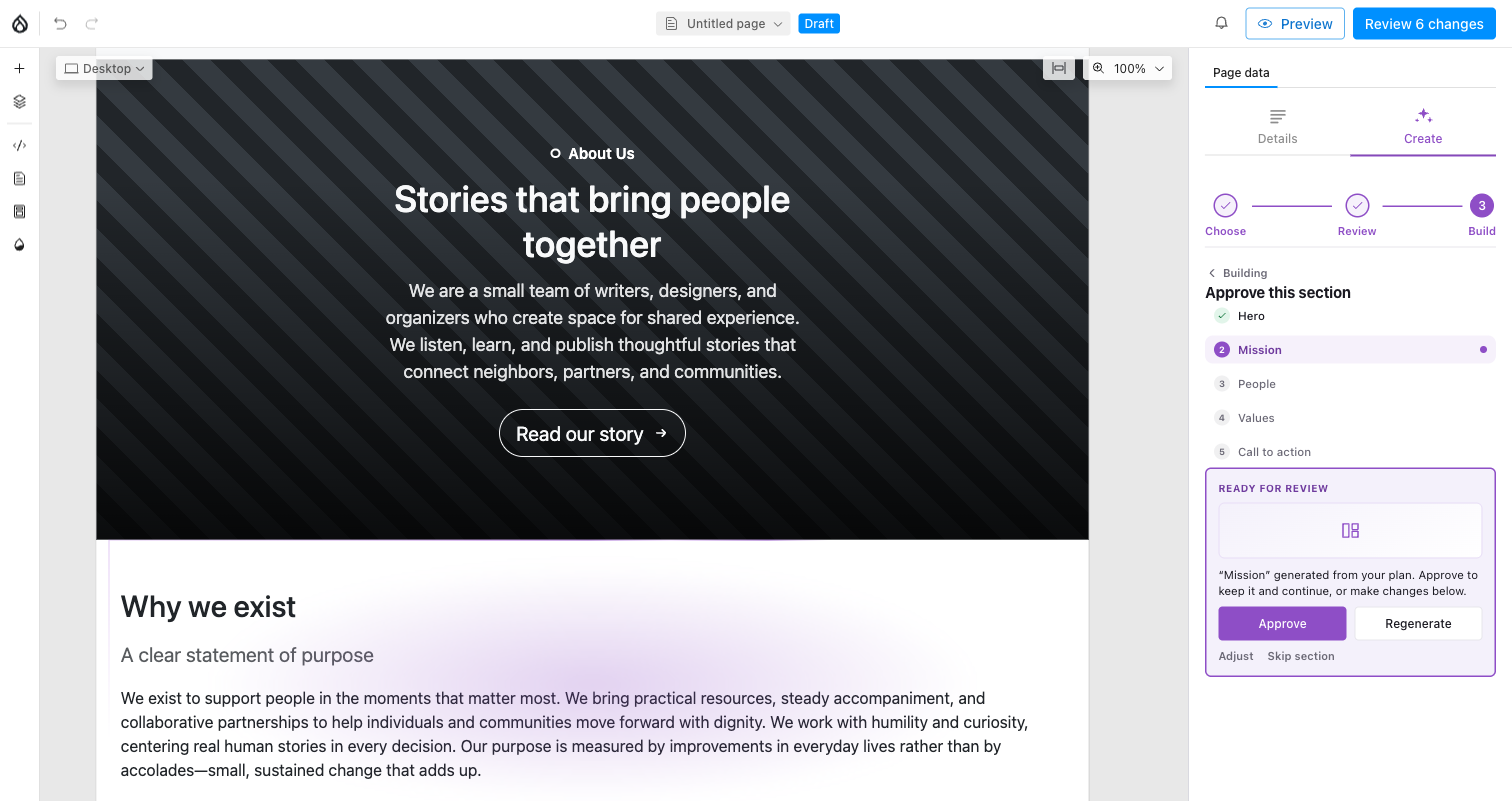
Guided mode: each section lands on the canvas, then waits for Approve, Modify (with a note), regenerate, or Skip.
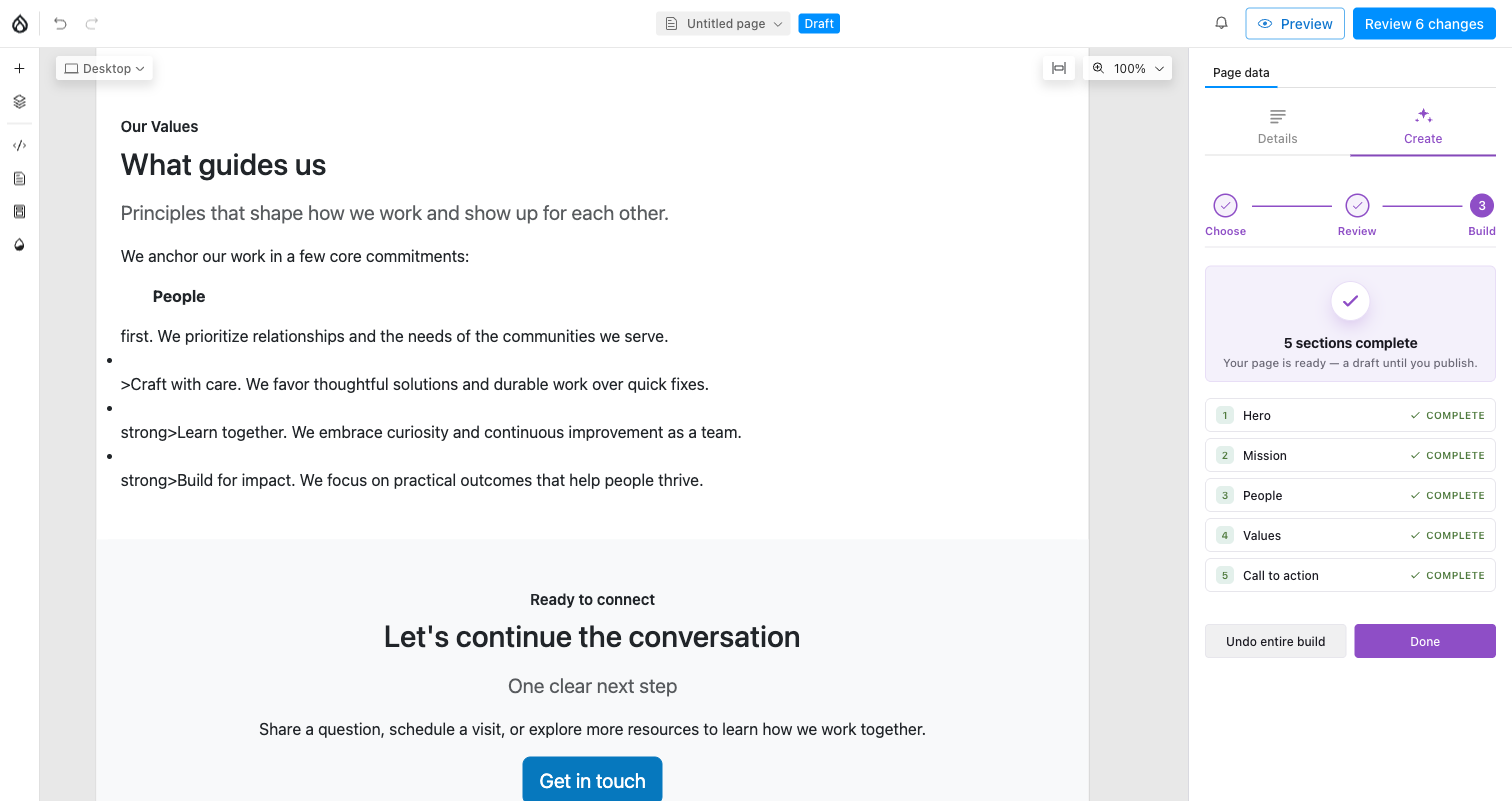
4. Done. Every section's status, plus a single Undo entire build that restores the pre-build page exactly.
Auto skips the per-section checkpoints and runs straight through the same sequence — useful once you trust the plan from Review and just want the page built.