Customize
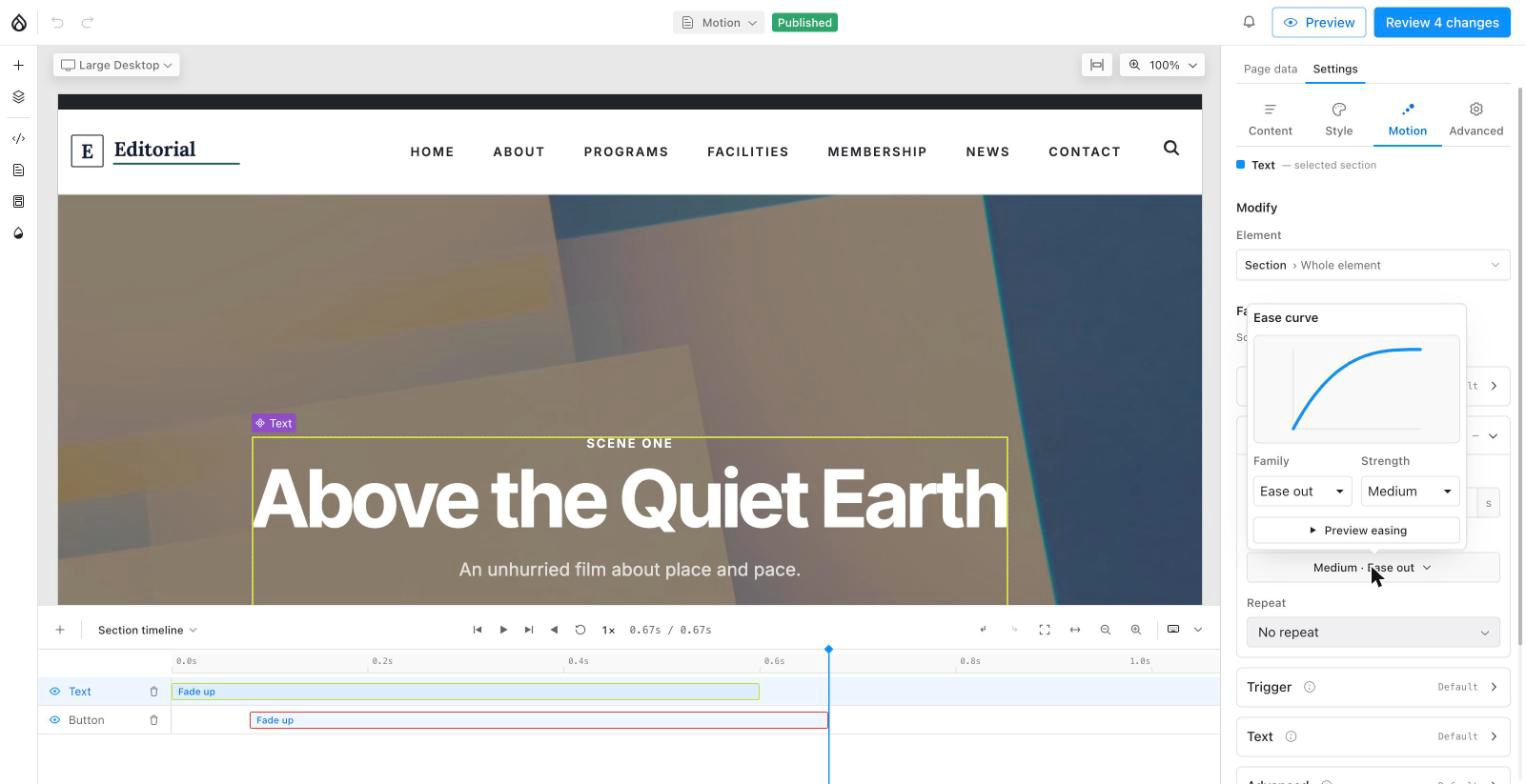
Customize → opens the second level: everything the effect decided for you, and the controls to override it. A read-only strip at the top names what you are editing — effect, trigger, target — so you never lose your place.
Default and Custom
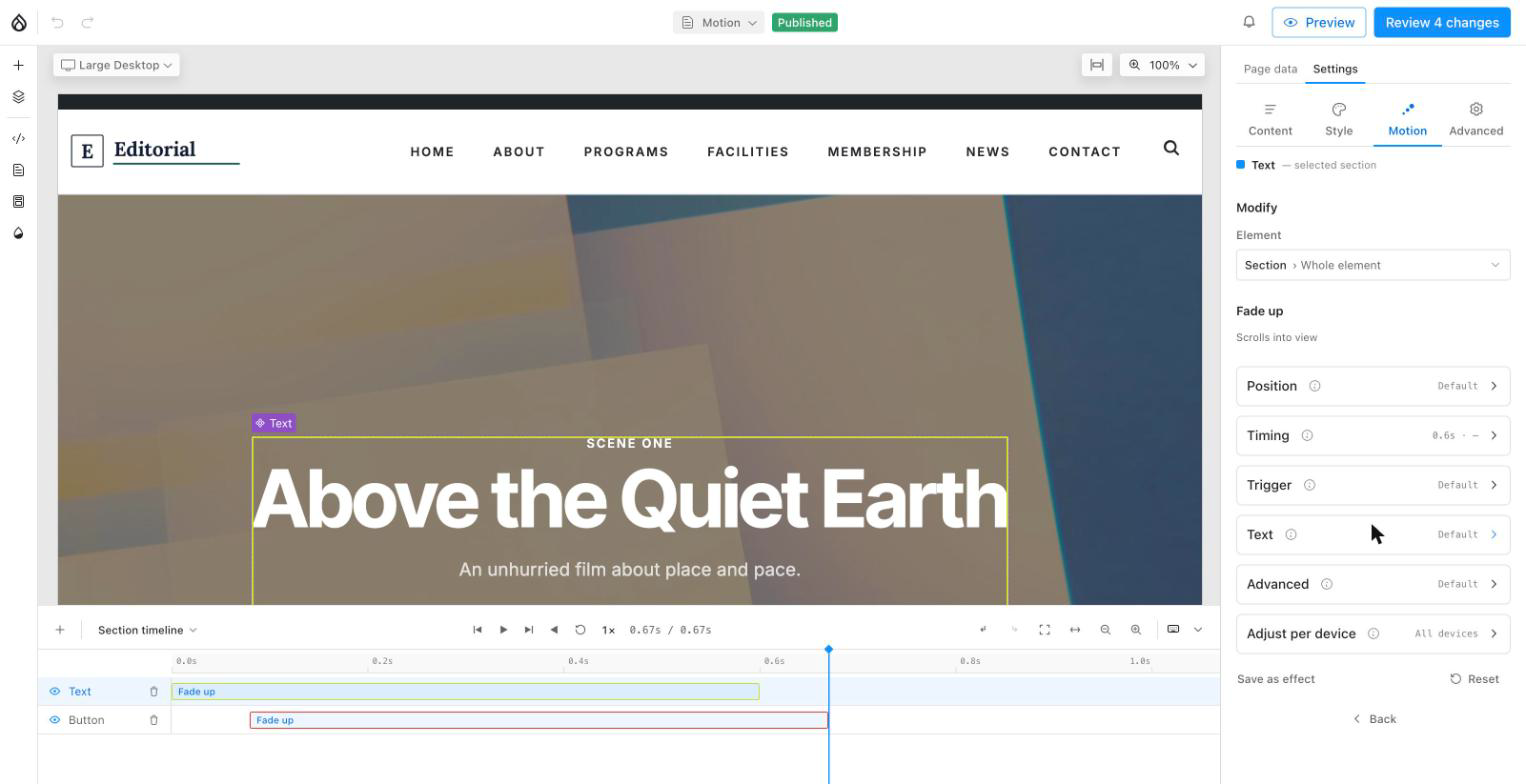
The toggle shows which state the animation is in:
- Default — it is using the effect's own values, untouched.
- Custom — you have overridden at least one of them.
You do not switch modes by hand. Edit any field and it becomes Custom. Click Default to clear your overrides and go back to the effect's values — undoable with Canvas's own undo.
The groups
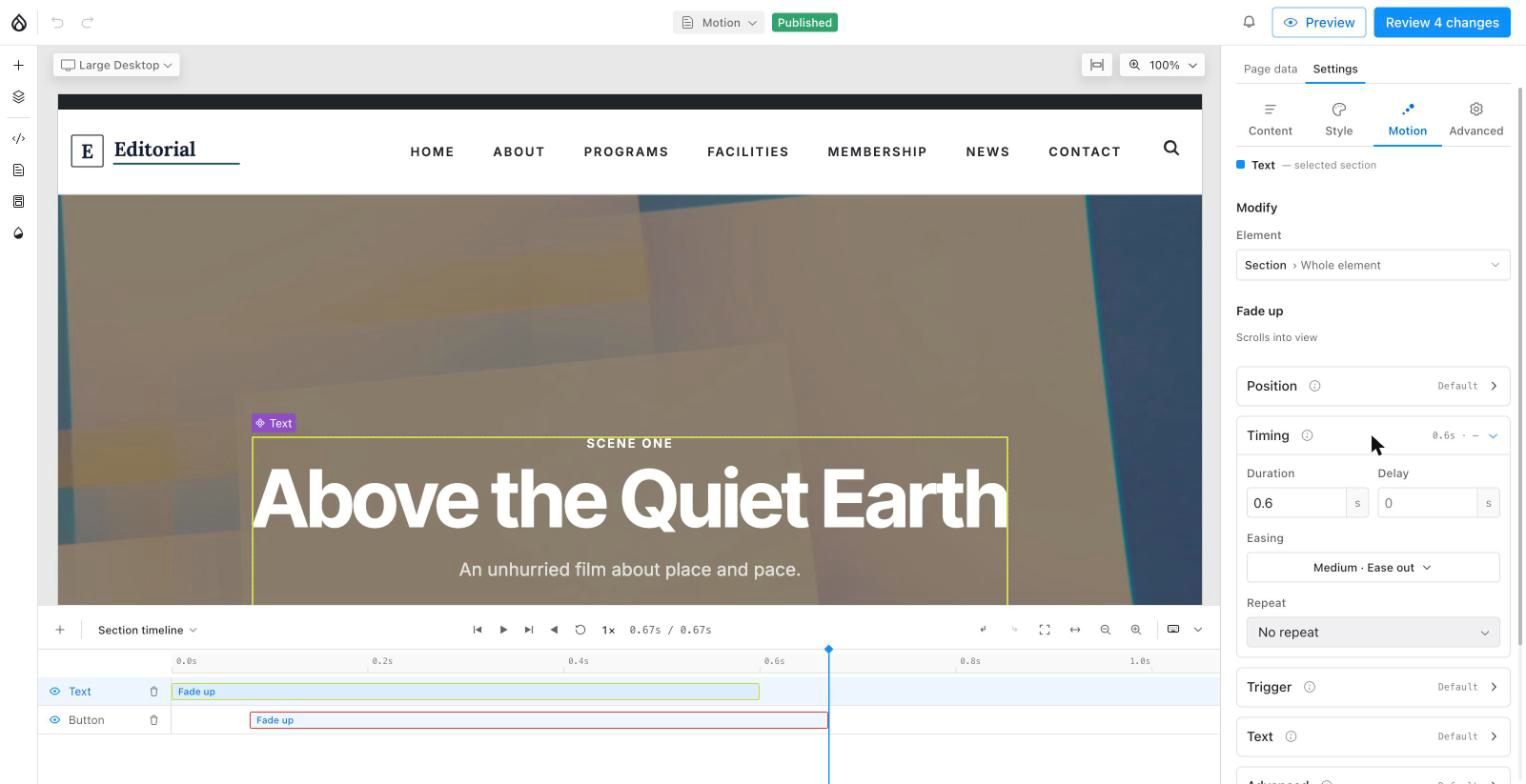
| Group | Holds |
|---|---|
| Position | Direction, distance, opacity from/to, and drag-on-canvas |
| Timing | Duration, delay, easing, stagger, repeat, repeat delay, exit easing |
| Scroll & position | Scroll start/end, pinning, and which element triggers it |
| Text | Splitting text into characters, words or lines |
| Advanced | Play once per session, panel width |
| Adjust per device | Per-device exceptions — see Per-device behaviour |
Groups that cannot apply do not appear: Scroll & position is hidden for a click trigger, Text only shows for a target that holds text.
Drag-on-canvas is keyboard-operable. Once grabbed, the handle takes focus and arrow keys nudge it — 10px per press, 1px with Shift held — Enter or Space commits the position, Escape cancels without applying it.
Each collapsed group carries a one-line summary of what it holds — 0.6s ·
Ease Out — so you can read the state without opening it. Easing opens a curve
picker rather than a plain dropdown, with named families, a strength axis, and
a custom bezier. The Timing group also carries a read-only keyframe
ruler: a miniature of where this animation's stops fall across its
duration.