The timeline dock
The dock runs along the bottom of the canvas whenever the selected section has a timeline. Each animation is a row; the bar on that row is its clip.

- Drag a clip to change when it starts; drag either edge to change how long it runs. A drag soft-snaps to the ruler's tick marks by default; hold Shift while dragging and it snaps to other clips' edges on the same row instead.
- Undo and redo in the dock header step through timeline edits only (timing, trigger, device overrides, removals). Picking an effect is not an undoable step: remove it from the track instead. Once the motion stack is empty, ⌘Z falls through to Canvas's own undo, so it never surprises you.
- Play/pause (or Space) previews the whole section timeline.
- The eye icon disables that animation without deleting it — click again to re-enable.
- The trash icon deletes the animation. The component itself is untouched.
- + Add animation in the dock header offers the targets that have no animation yet, and greys out when they all do.
Right-click a clip
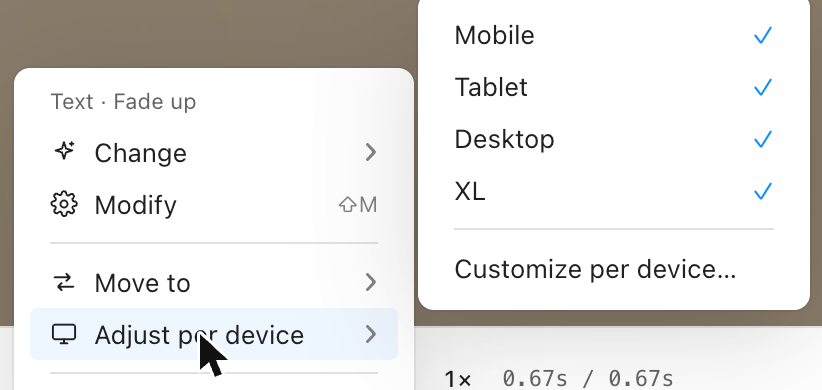
| Item | What it does |
|---|---|
| Change › | Effect, Trigger or Timing |
| Modify | Opens the Customize screen |
| Move to › | Reassigns this animation to another target, keeping every other field |
| Adjust per device › | Tick or untick a device to show or hide it there |
| Disable / Enable animation | Same as the eye icon |
| Remove animation | Deletes it |
Change opens a second level with three entries; Effect and Trigger each open a third listing every choice, with the current one ticked — the list doubles as a readout. Picking one applies it immediately and opens the Motion panel at the matching group. Each list ends in All effects… / Trigger settings… for the full screen, which can search and preview. Timing skips straight to the panel with the Timing group expanded, since duration/delay/easing are continuous values, not a short list.
These shortcuts work whenever an animation is selected and you are not typing in a field:
| Play / pause | Space |
| Undo | ⌘Z |
| Redo | ⌘⇧Z |
| Nudge playhead | ← → |
| Zoom ruler in / out | + – |
Everything else — changing an effect, trigger or timing, Modify, removing an animation — is a right-click away in the context menu above.
The page timeline
The dock shows one section's timeline at a time. Switch it to the page view and you get one lane per animated section, each with a draggable offset handle — how long after the page's own start that section's timeline begins.
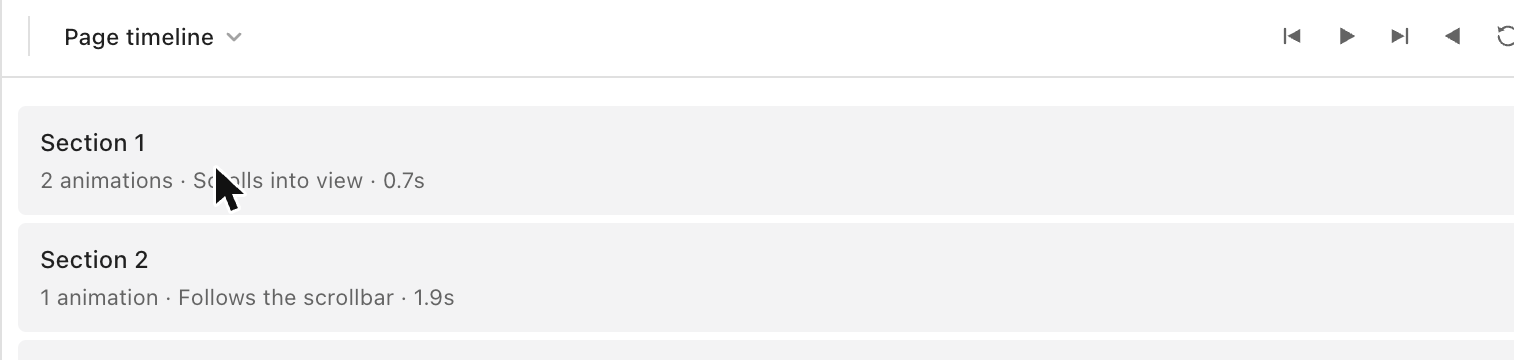
This is for sequencing sections against each other. The clips inside a section are still edited in that section's own timeline; the page view only moves the whole timeline earlier or later. Offsets snap to the same stops clip dragging uses, and the ruler is shared with the section view so a position means the same thing in both.